How to Setup n8n Self-Hosted Instance for FREE using Render and Supabase
A complete guide to deploying a free, self-hosted n8n workflow automation instance using Render and Supabase PostgreSQL.
Mohan Kumar
Author
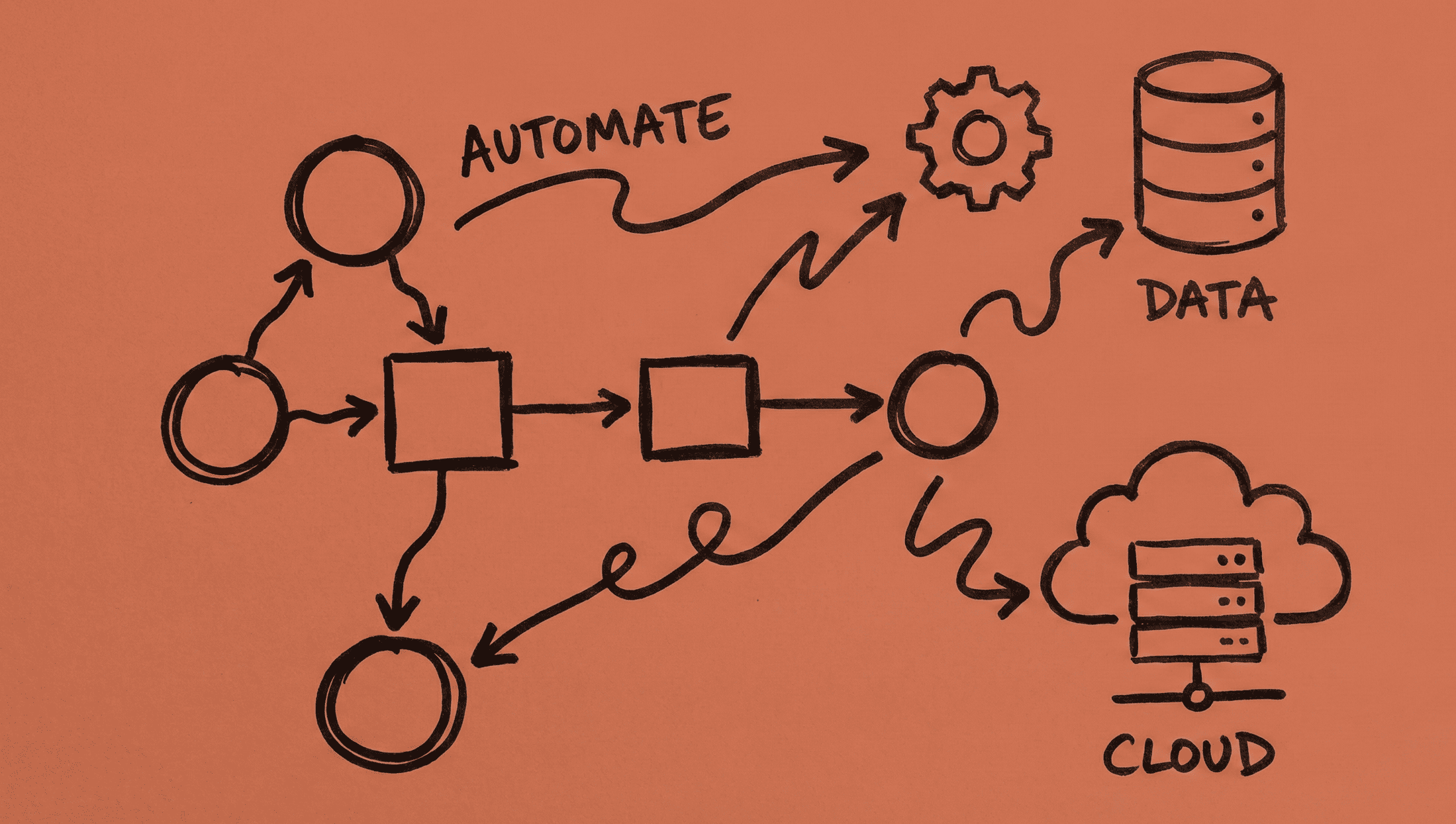
If you’ve been looking for a powerful, open-source automation tool but don’t want to pay for expensive cloud subscriptions, this guide is for you. I’ll walk you through setting up a completely free, self-hosted n8n instance using Render and Supabase.
Introduction
What is n8n?
n8n (pronounced “nodemation”) is a powerful, open-source workflow automation tool that allows you to connect and automate tasks across different services and applications. Think of it as a self-hostable alternative to Zapier or Make.com, with over 200+ integrations and the flexibility to build complex workflows.
Why Self-Host?
While n8n offers a cloud version starting at €24/month, self-hosting gives you:
- Zero cost — Run your automation workflows for free
- Data control — Your data stays on your infrastructure
- No workflow limits — Cloud plans restrict active workflows
- Customization — Full control over configuration and updates
Why Render + Supabase?
This combination offers the best free-tier experience:
- Render — Easy Docker deployment with free web service tier
- Supabase — Free PostgreSQL database with generous limits
- No credit card required — Both platforms offer free tiers without payment info
Prerequisites
Before we begin, create accounts on:
- Render — render.com
- Supabase — supabase.com
- Custom domain (optional but recommended) — Helps avoid browser security warnings on default Render URLs
Setting Up Supabase PostgreSQL Database
n8n requires a database to store workflows, credentials, and execution history. While n8n defaults to SQLite, PostgreSQL is recommended for production use due to better concurrency and reliability.
Step 1: Create a New Supabase Project
- Log in to your Supabase dashboard
- Click New Project
- Choose your organization
- Enter project details:
- Name:
n8n-db(or any name you prefer) - Database Password: Set a strong password (save this!)
- Region: Select the region closest to your users
- Name:
- Click Create new project
Wait for the project to be provisioned (usually 1-2 minutes).
Step 2: Get Your Connection Details
- In your Supabase project dashboard, click the Connect button (top right)
- You’ll see three connection types:
- Direct connection — IPv6 only
- Session pooler — Port 5432
- Transaction pooler — Port 6543
Important: Use the Transaction pooler (port 6543) for n8n on Render. This is because Render’s free tier may not support IPv6, and the transaction pooler works over IPv4.
Your connection string will look like:
postgresql://postgres.[project-ref]:[password]@aws-0-[region].pooler.supabase.com:6543/postgresStep 3: Parse the Connection String
From the connection string, extract these values:
| Component | Example Value |
|---|---|
| Host | aws-0-ap-south-1.pooler.supabase.com |
| Port | 6543 |
| Database | postgres |
| User | postgres.[project-ref] |
| Password | Your database password |
Keep these handy — you’ll need them for Render configuration.
Deploying n8n on Render
You have two options to deploy n8n on Render. Choose the one that suits your preference.
Option A: Manual Setup (Using Docker Image)
This is the quickest way to get started.
- Log in to your Render dashboard
- Click New + → Web Service
- Select Deploy an existing image from a registry
- Enter the image URL:
docker.io/n8nio/n8n:latest - Click Connect
- Configure the service:
- Name:
n8n-service(or your preferred name) - Region: Select the region closest to your Supabase database for best latency
- Instance Type: Free
- Name:
- Click Deploy Web Service
Option B: Using Blueprint (Infrastructure as Code)
This approach uses a render.yaml file for reproducible deployments.
- Create a new GitHub repository
- Add a
render.yamlfile with the following content:
services:
  - type: web
    plan: free
    runtime: image
    name: n8n-service
    image:
      url: docker.io/n8nio/n8n:latest
    envVars:
      - key: N8N_ENCRYPTION_KEY
        value: "your-32-character-random-string"
      - key: DB_TYPE
        value: postgresdb
      - key: DB_POSTGRESDB_HOST
        value: "aws-0-[region].pooler.supabase.com"
      - key: DB_POSTGRESDB_PORT
        value: "6543"
      - key: DB_POSTGRESDB_DATABASE
        value: postgres
      - key: DB_POSTGRESDB_USER
        value: "postgres.[project-ref]"
      - key: DB_POSTGRESDB_PASSWORD
        value: "your-supabase-password"
      - key: DB_POSTGRESDB_SSL_REJECT_UNAUTHORIZED
        value: "false"
      - key: WEBHOOK_URL
        value: "https://your-service.onrender.com"
      - key: N8N_EDITOR_BASE_URL
value: "https://your-service.onrender.com"- In Render dashboard, go to Blueprints → New Blueprint Instance
- Connect your GitHub repository
- Deploy
Tip: After the first deployment, you can disconnect the Blueprint and manage environment variables directly from the Render dashboard.
Configuring Environment Variables
If you used Option A (manual setup), you need to add environment variables manually.
Go to your n8n service → Environment → Add Environment Variable
Required Environment Variables
| Key | Value | Description |
|---|---|---|
DB_TYPE | postgresdb | Tells n8n to use PostgreSQL |
DB_POSTGRESDB_HOST | aws-0-[region].pooler.supabase.com | Supabase host |
DB_POSTGRESDB_PORT | 6543 | Transaction pooler port |
DB_POSTGRESDB_DATABASE | postgres | Database name |
DB_POSTGRESDB_USER | postgres.[project-ref] | Supabase user |
DB_POSTGRESDB_PASSWORD | Your password | Supabase password |
DB_POSTGRESDB_SSL_REJECT_UNAUTHORIZED | false | Required for Supabase SSL |
N8N_ENCRYPTION_KEY | Random 32+ char string | Encrypts credentials |
WEBHOOK_URL | Your Render URL | For webhook triggers |
N8N_EDITOR_BASE_URL | Your Render URL | For editor access |
Generating N8N_ENCRYPTION_KEY
This key encrypts sensitive data (API keys, OAuth tokens) stored in the database. Generate a secure random string:
openssl rand -hex 32Critical:
- Set this key once and never change it
- If you lose or change this key, all saved credentials become unreadable
- Back it up somewhere safe
Setting Webhook and Editor URLs
After your first deployment, Render assigns a URL like:
https://n8n-service-xxxx.onrender.comUse this URL for both WEBHOOK_URL and N8N_EDITOR_BASE_URL.
After adding all variables, click Save Changes and redeploy the service.
Setting Up Custom Domain (Optional but Recommended)
Render’s default .onrender.com domains may trigger browser security warnings. Using a custom domain resolves this and looks more professional.
Step 1: Add Domain in Render
- Go to your n8n service → Settings
- Scroll to Custom Domains
- Click Add Custom Domain
- Enter your subdomain (e.g.,
n8n.yourdomain.com)
Step 2: Configure DNS
In your domain registrar’s DNS settings, add a CNAME record:
| Type | Name | Value | TTL |
|---|---|---|---|
| CNAME | n8n | n8n-service-xxxx.onrender.com | 3600 |
Step 3: Verify Propagation
Check if DNS has propagated using:
Or via command line:
# Windows
nslookup n8n.yourdomain.com

# Mac/Linux
dig n8n.yourdomain.com CNAME
Step 4: Wait for SSL Certificate
Render automatically provisions an SSL certificate via Let’s Encrypt. This usually takes 5-15 minutes. You’ll see “Certificate Issued” with a green checkmark when ready.
Step 5: Update Environment Variables
Once the domain is active, update your env vars:
| Key | New Value |
|---|---|
WEBHOOK_URL | https://n8n.yourdomain.com |
N8N_EDITOR_BASE_URL | https://n8n.yourdomain.com |
Redeploy the service after updating.
Troubleshooting Common Issues
Issue 1: IPv6 Connection Error (ENETUNREACH)
Error:
connect ENETUNREACH 2406:da1a:xxx:xxxx::xxxx:5432Solution: Change DB_POSTGRESDB_PORT from 5432 to 6543 (transaction pooler).
Issue 2: Database Connection Failures
Possible causes:
- Incorrect password
- Special characters in password not URL-encoded
- Wrong host or port
Solution:
- Reset your Supabase database password
- For special characters (
@,#,%), URL-encode them or use a simpler password
Issue 3: Certificate Pending
Solution: Wait 5-15 minutes. Render auto-provisions SSL certificates. If it takes longer than 30 minutes, verify your DNS configuration.
Issue 4: Credentials Not Working After Migration
Cause: Different N8N_ENCRYPTION_KEY between old and new instances.
Solution: Always use the same encryption key when migrating or recreating n8n instances.
Tips & Best Practices
1. Backup Your Encryption Key
Store your N8N_ENCRYPTION_KEY securely (password manager, secure notes). Losing this means losing access to all encrypted credentials.
2. Understand Free Tier Limitations
- Render free tier: Service sleeps after 15 minutes of inactivity. First request after sleep takes 30-60 seconds to wake up.
- Supabase free tier: Database pauses after 1 week of inactivity on the free plan.
For production use, consider upgrading to paid tiers.
3. Align Regions for Lower Latency
Deploy your Render service in the region closest to your Supabase database. This minimizes database query latency.
4. Regular Backups
Export your workflows periodically:
- In n8n, go to Settings → Workflow Settings
- Export workflows as JSON files
- Store them in version control (GitHub, GitLab)
Conclusion
You now have a fully functional, self-hosted n8n instance running for free.
What We Achieved
- Deployed n8n on Render’s free tier
- Connected to Supabase PostgreSQL (free)
- Configured secure credential encryption
- Set up custom domain with SSL
Cost Breakdown
| Service | Cost |
|---|---|
| Render Web Service | $0 (free tier) |
| Supabase PostgreSQL | $0 (free tier) |
| Custom Domain | $0-15/year (optional) |
| Total | $0 |
Next Steps
- Explore n8n’s 200+ integrations
- Build your first automation workflow
- Join the n8n community for inspiration and support
Happy automating!
If you found this guide helpful, consider sharing it with others who might benefit from free workflow automation.